
Subscribe after the AwehTV app is installed
Use this page when you already have AwehTV installed and need to activate, renew, or confirm a subscription. If you still need the app, start with the AwehTV app download. If you are comparing plans, go to AwehTV packages and prices. If support asks for an activation code, use the Device ID guide.
- App first: install AwehTV before choosing or renewing a plan.
- Package questions: compare monthly, quarterly, yearly, and longer plans on the package page.
- Support questions: keep your Device ID and payment reference ready.
Subscribe to AwehTV after installing the app
Use this guide when you already have the AwehTV app installed and want to activate, renew, or confirm your subscription. If you still need the app, download the AwehTV app first. To compare plan options, view AwehTV packages and prices. If support asks for a code, find your AwehTV Device ID.
Follow these simple steps to activate or renew your AwehTV subscription.
Step 1 – Open the AwehTV App
- Launch the AwehTV app on your device.
- Make sure your device is connected to the internet.
Step 2 – Go to Profile
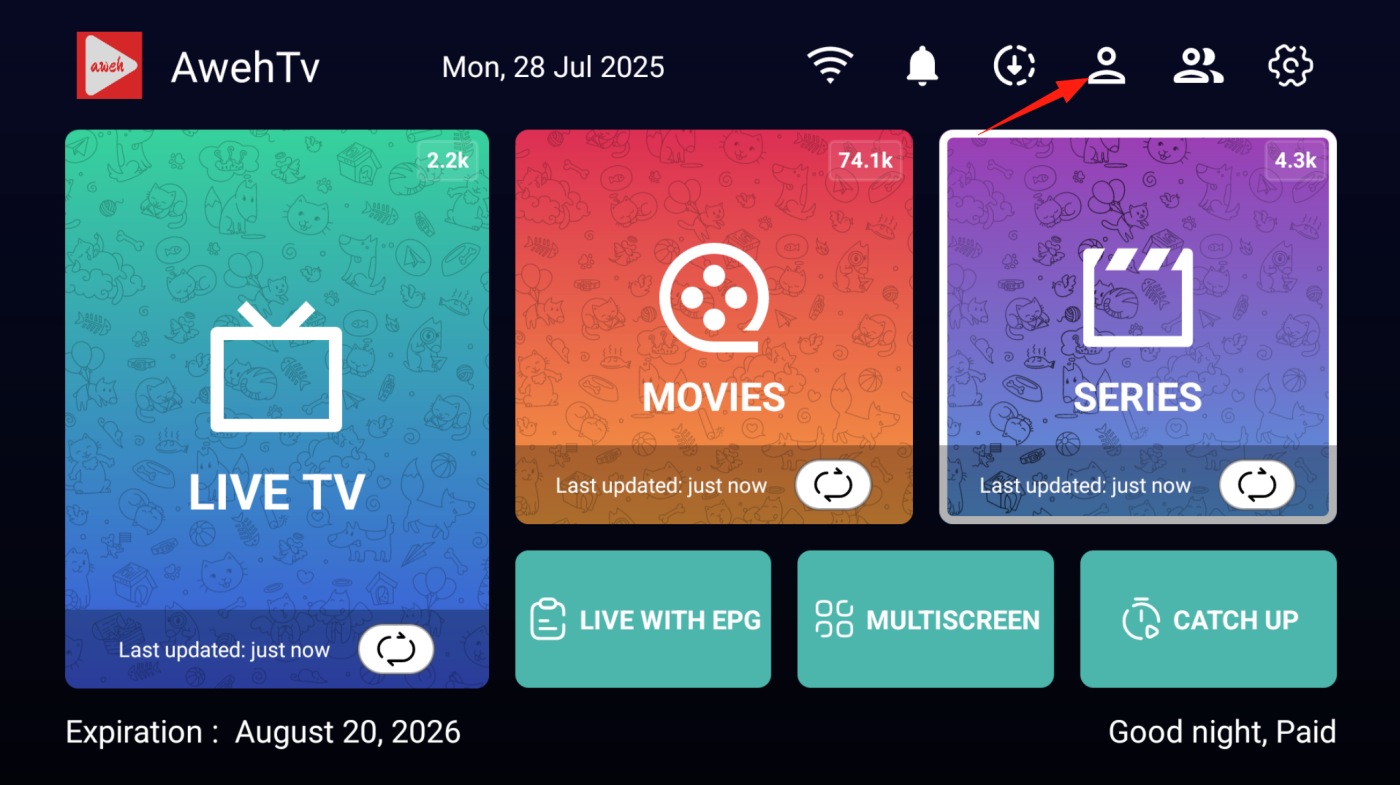
- On the top menu bar, tap the Profile icon (👤).
- This will open your Subscription Info page.
Step 3 – Scan the QR Code
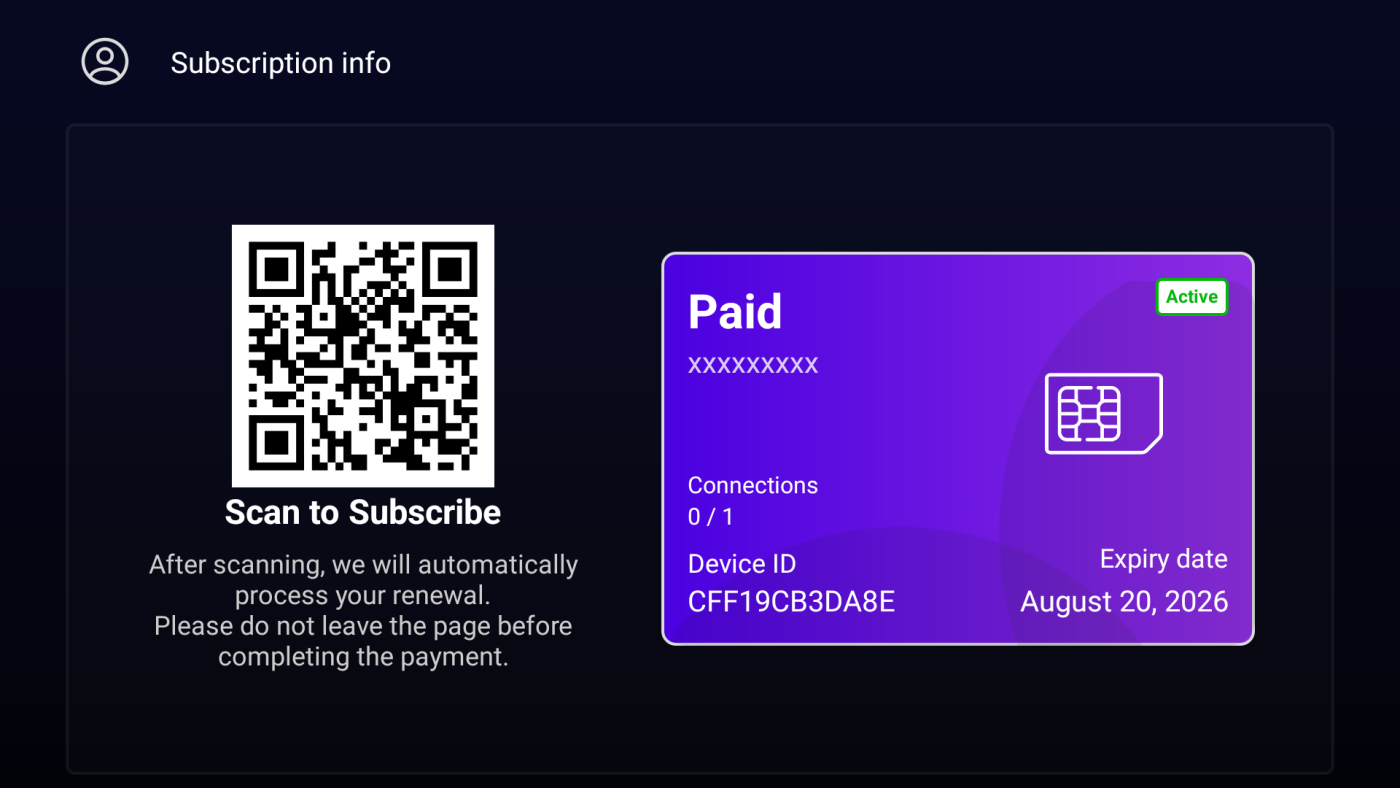
- Use your mobile phone’s camera or a QR scanning app to scan the QR code displayed on the screen.
- The QR code will take you to the payment page.
Step 4 – Complete Payment
- Pay using your preferred method (e.g., bank app, mobile wallet, card payment).
- The system will confirm your payment and renew your subscription.
- You will see the new expiry date on the Subscription Info page.
💡 Tips
- Keep your Device ID safe – you might need it for support or manual renewal.
- If payment is completed but the subscription does not update, restart the app and check again.
- If you have any issues, contact +1 571 462 3888.
